Published 2026-11-02
Locked Out of Your VPS? Use a Safe SSH Recovery Plan
If you lose SSH access to a VPS you own, keep any working session open and use the provider's documented console or rescue process to diagnose the failure. Do not start by disabling every firewall rule or replacing authentication settings you do not understand.
In this guide
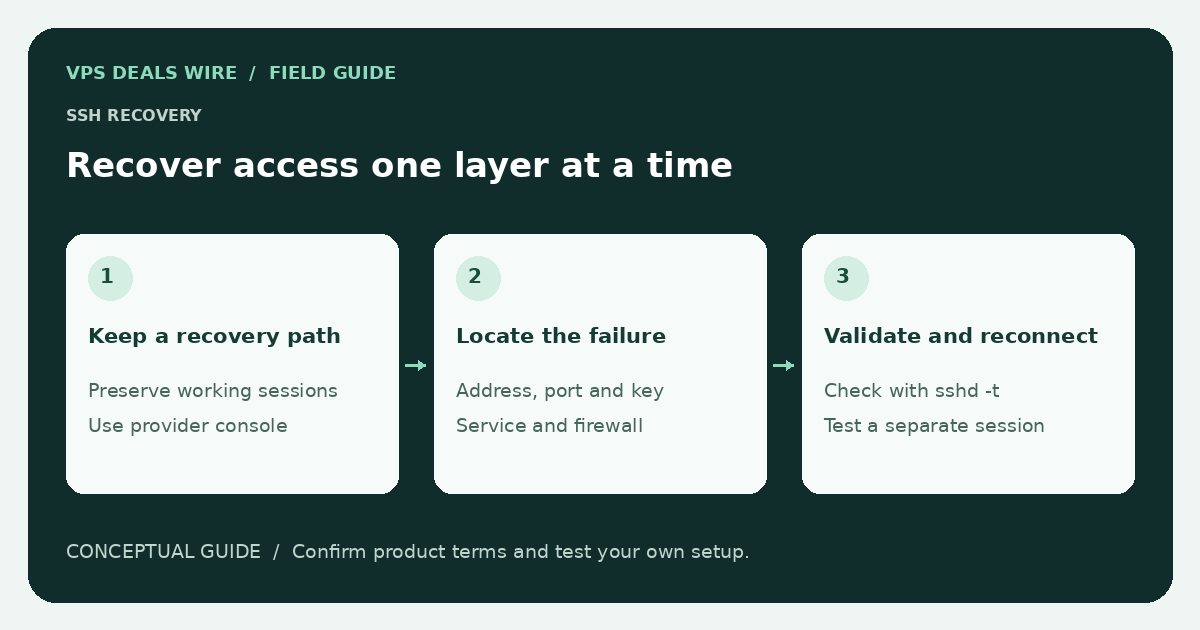
A connection failure can occur at different stages: reaching the address, establishing a connection, negotiating SSH, or authenticating. Identifying the stage narrows the investigation and helps avoid changes that create a second problem.
Check the destination and available recovery path
Confirm the current server address, SSH port, username, and expected key. Make sure the instance is running and inspect the provider dashboard for an incident or suspension notice. If a hostname is involved, verify that it points where you intend.
Find the official browser console, serial console, or rescue instructions for the product. Access to the account dashboard may be critical when guest networking is broken. Keep that account secure and do not share passwords or private keys in public troubleshooting posts.
Use client diagnostics carefully
On an appropriate SSH client, verbose output can help identify whether the connection reaches authentication. Logs may contain usernames, addresses, and local paths, so redact them before sharing. A host-key warning needs verification through a trusted route; do not dismiss it automatically.
Check that you are offering the intended key rather than repeatedly guessing passwords. If an access policy includes lockout or rate limiting, respect it. This guide covers recovery of your own server, not access to someone else's machine.
Inspect server state from the recovery console
Check whether the SSH service is running, whether it listens on the intended interface and port, and whether guest and provider-level firewalls permit the connection. Review the relevant service logs using your distribution's documentation. Different firewall layers can produce similar symptoms.
Before applying an SSH configuration change, use the server's documented validation method, such as sshd -t where supported. Confirm that the command validates the actual configuration file in use. Avoid closing the working console until a separate new connection succeeds.
Restore access with the smallest necessary change
Keep a copy of the previous configuration and change one relevant setting at a time. Do not enable unrestricted root password access as a general troubleshooting shortcut. If a rescue environment is necessary, follow the provider's mount and recovery instructions and preserve the existing filesystem.
After recovery, test normal access, update your records, and investigate why the lockout happened. Maintain independent backups and a rehearsed recovery route. The first setup guide and support-responsibility guide help clarify which recovery tasks belong to you and which assistance your plan actually includes.