Published 2026-11-14
VPS Firewall First Steps After You Get Root Access
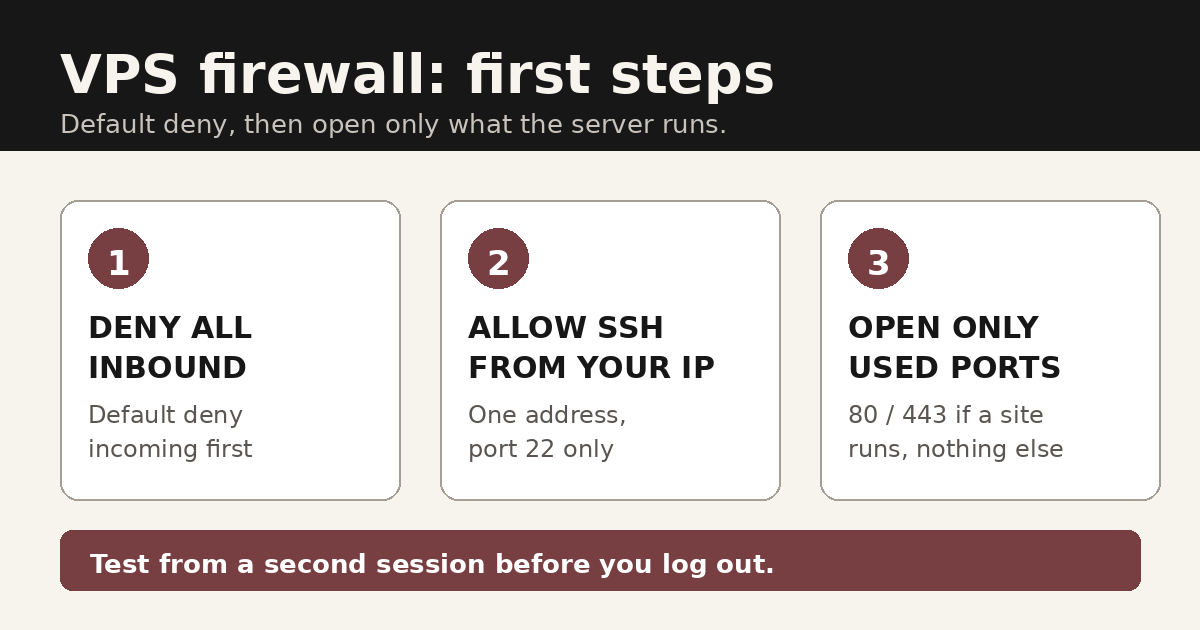
Short answer: deny everything inbound first, then allow SSH from your own address only, then open the ports your services actually use. Do it in that order, and test from a second session before you log out of the first. A firewall set up right after the first login is still early, and every port you leave open is a service you now have to keep patched — so the first hour of a new server is the right time for these four decisions, not a job for later in the week.
In this guide
The commands below use ufw, which ships on many Ubuntu and Debian images. If your image uses firewalld, nftables, or the provider's own agent instead, the commands differ but the decisions do not: default deny, SSH from your address, only the ports you use, and a test before you log out.
1. Start with default deny
Set the inbound default before you allow anything, so a rule you forget does not silently leave a port open:
sudo ufw default deny incoming
sudo ufw default allow outgoing
Outgoing stays open so the server can still fetch updates and packages. Inbound is closed except for what you explicitly allow in the next two steps. Do not reverse this — an allow-first firewall only protects the ports you remembered to close.
2. Allow SSH — from your address only
Your own SSH access is the one inbound connection the server needs right now, and it should come from your address only:
sudo ufw allow from 203.0.113.10 to any port 22
Replace 203.0.113.10 with your own public IP address. If your address changes often, you may need a wider allowance, but keep it as narrow as your connection allows: a rule that allows SSH from anywhere is the rule automated login attempts will find first. Key-only SSH login is a separate setting and worth doing too, but it is not a substitute for restricting who can even reach the port.
3. Open only the ports you actually use
Add a port only when a service is already listening on it. A web server is the usual case:
sudo ufw allow 80,443/tcpA database port, by contrast, should almost never be open to the world. Bind the database to localhost, or allow only the address of the application server that talks to it. The same applies to admin panels and game servers: if only you use it, allow only your address, the way step 2 does for SSH.
One limit to keep in mind: a host firewall does not stop a volumetric DDoS attack — that traffic has to be absorbed before it reaches your server. Check what your provider covers at the network level before you assume the firewall handles it; our VPS DDoS protection checklist walks through the questions to ask.
4. Test from a second session before you log out
Turn the firewall on, confirm the rules, and then prove you can still get in — while your first session is still connected:
sudo ufw enable
sudo ufw status numbered
Read the numbered list back against steps 1–3: default deny inbound, your SSH rule, and only the ports you use. Then open a new SSH session in a second terminal. If the new session connects, the rules are right and you can log out of the first. If it fails, the first session is still there to fix the rule — that is the whole point of testing before logging out. If you do lock yourself out anyway, the recovery route is the provider console, as covered in our VPS SSH lockout recovery guide.
5. Check the provider firewall too
Some providers run a cloud firewall in front of the server, and its rules apply before the operating-system firewall sees the traffic. That cuts both ways: a port open in ufw still stays closed if the provider panel blocks it, and a port opened in the panel does not help if ufw denies it. Check both layers, and decide which one is the source of truth for each port — running the same rules in two places with different values is how a port ends up open when you thought it was closed.
If you rebuild servers from a template, put these rules in the first-boot setup so a fresh server gets the same firewall without a manual repeat. Our cloud-init first-boot guide covers verifying that automation before you trust it.
Checklist before you move on
- Default deny inbound is set; outgoing is still allowed.
- SSH is allowed from your address only, on port 22.
- Only the ports your running services use are open.
- A second SSH session connected while the first was still open.
- The provider firewall panel, if one exists, agrees with ufw.
Five checks, one order, no extra software to install. Once they pass, the server is ready for the actual work you bought it for.