Published 2026-11-05
Docker Logs Filling a VPS? Set Retention Deliberately
When Docker logs consume VPS storage, identify the active logging driver and the containers producing the data before changing retention. Container logs, images, writable layers, and volumes are different resources. Removing the wrong one can turn a disk-space problem into data loss.
In this guide
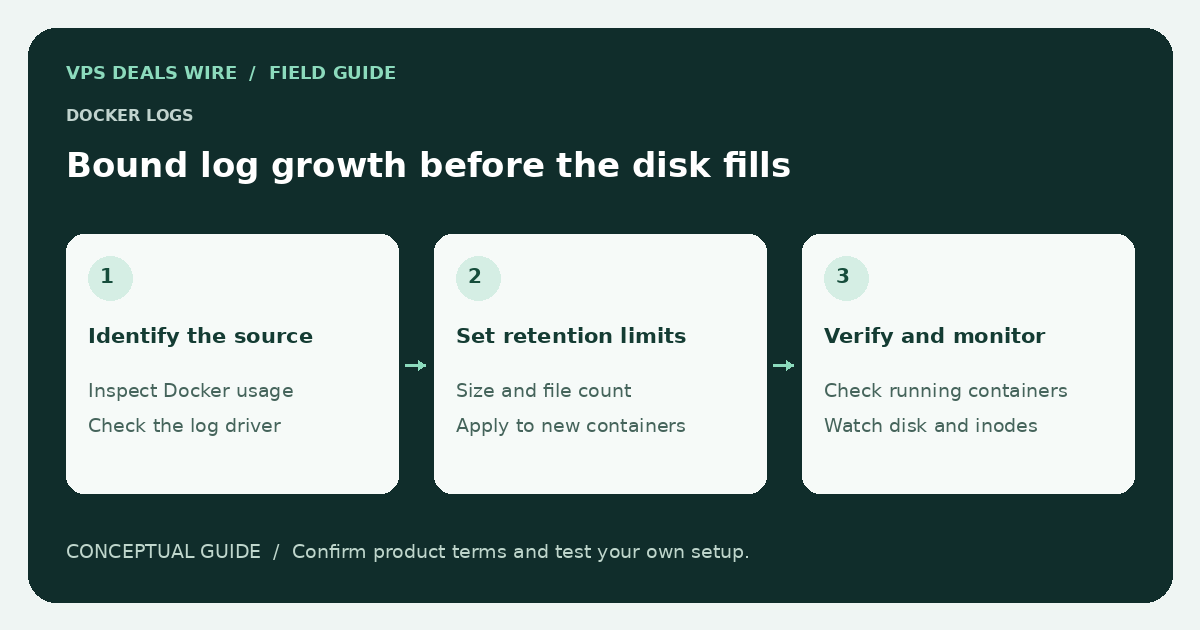
This guide describes a diagnostic and planning approach. It does not provide a cleanup command to run blindly on production or claim that a particular Docker version uses your intended defaults. Consult the official logging documentation for the installed version.
Confirm where the space is going
Start with filesystem and inode usage, then inspect Docker's documented storage information. Check the data directory and the affected containers. Do not assume the largest directory is disposable: a volume may contain a database or uploaded files.
Ask whether an application has become unusually verbose or is repeating an error. Rotation can limit retained logs, but it does not fix a failing job producing continuous output. Preserve the evidence needed to diagnose the underlying problem.
Read the actual logging configuration
Determine the daemon default and each relevant container's logging driver and options. A setting in a configuration file is not proof that an already running container inherited it. Options and their effect depend on the selected driver and the way the container was created.
If the driver supports size and file-count limits, choose them from your incident-response needs and storage budget. Retaining too little can erase the only evidence of a failure; retaining without a bound can consume capacity needed by the application.
Plan the rollout before changing the daemon
Check the documentation for how changed settings apply to existing and newly created containers. A daemon restart or container recreation may affect availability. Save deployment configuration and confirm where persistent application data lives before scheduling any restart.
Avoid editing Docker-managed log files or deleting data directories as a routine substitute for supported rotation. Do not use broad pruning commands until you understand exactly which objects they select and whether recovery is possible.
Verify the result over time
After an authorized change, confirm the effective container configuration and check that logging still works. Observe disk growth during ordinary application activity. Set space and inode alerts with enough time to investigate rather than waiting for writes to fail.
If external logging is used, check its access controls, retention, network requirements, and costs. Logs can contain personal information or secrets; sending them elsewhere changes the data handling picture.
Use the VPS sizing guide to revisit capacity and the backup guide to protect application data. A sustainable logging policy is part of running the server, not evidence that every cheap plan is unsuitable.