Published 2026-11-16
VPS Offsite Backup Checklist: Rotation and Retention
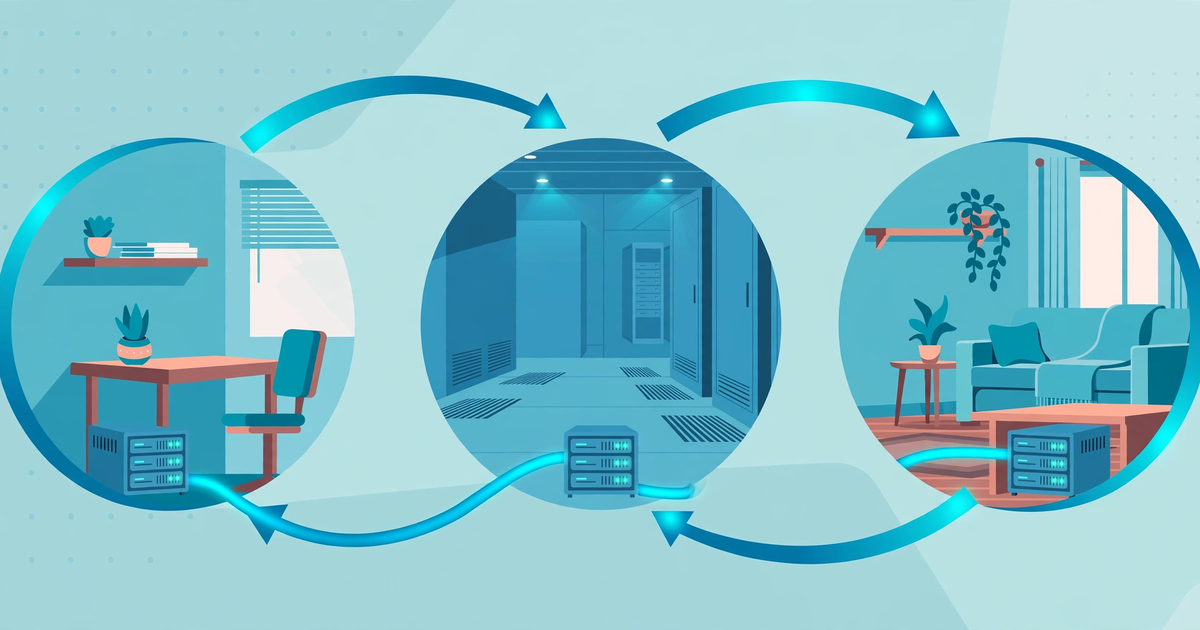
Short answer: keep three copies of your data, on two different kinds of storage, with one copy offsite — then test restores on a schedule and rotate old copies out before they eat your disk. A backup you have never restored is a hope, not a plan. The checklist below turns "we have backups" into something you can verify, and it works whether the backup is a file copy, a snapshot, or both.
In this guide
Offsite matters because the failures that destroy a server often destroy everything on it. A disk failure, a bad update, a compromised account, or a billing problem can take the live system and any backups stored beside it at the same time. An offsite copy survives those because it is not in the same place, on the same account, or under the same single point of failure. That is the whole point of the 3-2-1 idea: three copies, two media or locations, one offsite.
1. Decide what counts as a backup
Start by listing what you would need to rebuild the server from nothing: the site or application files, the database, configuration files, and any keys or certificates that cannot be regenerated. A snapshot of the whole disk may cover all of this at once, but a file-level backup lets you restore one database or one directory without rolling the whole machine back. The two approaches answer different questions, so many setups use both: snapshots for a fast full-machine recovery, file backups for a single-file mistake. Our snapshot restore test guide covers how to prove a snapshot actually boots, which is a different check from proving a file backup restores.
Whatever the method, write the list down. If the list lives only in someone's head, the first restore after that person is unavailable becomes a guessing exercise. The list also settles scope arguments later: anything not on it is a deliberate choice, not an oversight you discover during an outage.
2. Put one copy somewhere else
Offsite can mean another region, another provider, or a machine at a different location — the test is whether a problem at the primary site can reach it. A second server in the same data center with the same provider account is better than nothing, but it shares more failure modes than a copy in a different region under different credentials. At minimum, the offsite copy should not be writable with the same credentials that run the live server: if an attacker or a bad script can log into the live server and delete its local backups, the same credentials should not let it delete the offsite ones too.
Transfers should run over an encrypted channel, and the offsite copy should be encrypted at rest if it holds anything sensitive. A backup that contains database dumps and configuration files is often the most complete copy of your data that exists anywhere — treat access to it as seriously as access to the server itself.
3. Set a retention window and rotate
Retention is how long a backup stays before it is deleted. Keep too little and you cannot go back far enough when a problem is discovered late; keep everything and the backup store grows until it costs more than the server it protects. A common shape is daily copies kept for a week or two, weekly copies kept for a month or two, and monthly copies kept for a few months — but the right numbers depend on how often your data changes and how far back a realistic recovery needs to go. A database that changes hourly may need a shorter rotation with more frequent copies; a mostly static site may be fine with less.
Rotation is the mechanism that enforces retention: when a new backup arrives, the oldest one past the window is deleted. Automate it. A rotation step that depends on someone remembering to delete old files will eventually be skipped, and a full backup disk is how a backup job fails silently at the worst moment. Watch the disk on both ends: our disk space diagnosis guide covers finding what is actually filling a Linux VPS, and the same checks apply to a backup target that has quietly run out of room.
4. Test the restore — on a schedule, not on faith
A backup job that reports success has only proven it can write files, not that those files can rebuild a working server. Test the restore the same way you would run it in a real incident: pick a copy, restore it somewhere safe — a test server, a spare directory, or a temporary instance — and check that the application starts and the data is intact. A database dump that restores with errors, a configuration file that was never included, or an archive that turns out to be corrupt are all failures you want to find on a quiet afternoon, not during an outage.
Run the test on a schedule, for example monthly, and after any change to what is being backed up. Keep a short note of each test: which copy was restored, where, and whether it worked. That note is also the fastest way to answer the question that matters most during an incident — how old is the newest copy we can actually trust?
5. Know what the copy cannot do
A backup does not fix a problem with the data itself: if the database was already corrupted before the backup ran, every copy made after that point carries the same corruption. That is why retention matters — an older copy from before the problem started may be the only good one left. And a backup is not a substitute for understanding what survives a rebuild: files on an ephemeral disk may vanish when a server is rebuilt, as our persistent versus ephemeral storage guide explains, so the backup plan should assume the server itself can disappear.
Also confirm who can trigger a restore and how long it takes. A backup that only one person knows how to restore is a single point of failure of a different kind, and a restore that takes six hours changes the incident plan compared with one that takes thirty minutes. Both are worth knowing before the day you need them.
Checklist before you move on
- Backup scope written down: files, database, configuration, keys and certificates.
- Three copies on two kinds of storage, with one copy offsite under separate credentials.
- Retention windows set for daily, weekly, and monthly copies.
- Rotation automated so old copies are deleted without manual cleanup.
- Restore tested on a schedule, with a note of which copy was proven to work.
- Backup target disk usage monitored so a full disk cannot fail the job silently.
Backups are the one part of running a server where the work is invisible until the day it is everything. A short checklist, run on a schedule, is the difference between the two.